Search This Blog

Saturday, June 11, 2011

Follow other blogs!


Are you tired of dealing with HTML and CSS every time you want to change the look of your blog? Well, it turns out that there's an easier way. With the Layouts feature, you can drag-and-drop to move parts of your page around, and choose new fonts and colors with easy mouse clicks. Newly created blogs will work this way automatically, but for blogs without this feature, you'll need to upgrade your template. Here's how.
  1. Find the name of your blog on your dashboard, and click the Template link next to it. If this link says Layout instead, then it's already upgraded and you can skip the rest of these steps.

How can I use the Blogger Layouts features?

This post is based on a query posted by John Wilson from U.S. Thanks!

Are you tired of dealing with HTML and CSS every time you want to change the look of your blog? Well, it turns out that there's an easier way. With the Layouts feature, you can drag-and-drop to move parts of your page around, and choose new fonts and colors with easy mouse clicks. Newly created blogs will work this way automatically, but for blogs without this feature, you'll need to upgrade your template. Here's how.
  1. Find the name of your blog on your dashboard, and click the Template link next to it. If this link says Layout instead, then it's already upgraded and you can skip the rest of these steps.

Polls Page Element

The Polls page element is one of the new features we’ve added to Blogger in draft today. With this new page element, you can add a poll to your blog’s sidebar that your readers can vote in. Add as many answer choices as you like, and even select a date that you’d like the poll to close on.

Here’s a quick video of putting the polls widget into action:


Search Box

 The Search Box page element:

It uses Google's Custom Search Engine to dynamically search over your blog's content, as well as anything you've linked to in your blog posts, and even your sidebar-based link lists and blogrolls. In other words, it's really nifty - you can find it in your blog's Template | Page Elements tab, in the "Add a Page Element" popup.

Feature: OpenID commenting

Blogger in Draft now lets you enable OpenID-based commenting, in your blogs' Settings | Comments tab:


(OpenID comments work in both the Anyone and Registered Users modes)

Use Your Own Photo for Your Blog’s Background

After we launched the Blogger Template Designer, one of the most requested features was the ability to upload your own background image. Though we provide hundreds of professional stock photos from iStockPhoto, we know many of you are serious photo buffs and would like to use your own beautiful photo as your blog’s background image.

And now you can! Go to Design | Template Designer | Background, click onBackground Image, and you’ll notice a new “Upload image” option, which will allow you to select and upload your image.

Search and Insert YouTube Videos

Blogger supports drop-dead easy video-blogging -- if you have a video file, you can just upload it to Blogger. But when it comes to video-blogging, we know a lot of you also choose to embed YouTube videos to your post.

Currently, adding a YouTube video to your post is fairly easy, but it still requires several steps of work: If you don't have the embed code already, you'd have to open a new browser window or tab, go to YouTube.com, search the video, and play the video to make sure it's the right video. Once you copy the embed code, you come back to your Blogger post and manually insert the code in your post.

We’ve just added a new Blogger in Draft feature that makes this process a lot easier. You don't have to open another tab or window; from your post editor, just click theInsert a Video button in the toolbar. In addition to the already existing Upload tab, you'll now see two new tabs: From YouTube and My YouTube videos.


Customize Your Favicon! - By Blogger


For many bloggers, having a custom favicon (the tiny image displayed in your browser’s window or tab) is the finishing touch that ties together the design and identity of a great looking blog. Today, we're pleased to announce that Blogger in Draft users can now add a customized favicon to their blog.

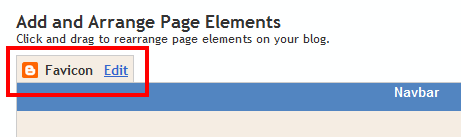
You can add a custom favicon from the Design | Page Elements tab (or, from theLayout tab if you're using the new user interface), by clicking Edit on the new “Favicon” setting above the navbar element:


Blogger Mobile Templates

This post is a press release from Google:
A few months ago we introduced mobile templates to Blogger in Draft. Today, we’re excited to announce that not only will these templates be available to everyone, we’ll be supporting all 27 Template Designer templates. We invite you to make your blog smartphone-friendly by going to the Dashboard > Settings > Email & Mobile tab and enabling the mobile template option.


Blogger mobile templates are mobile-optimized versions of our Template Designer templates. If you are using one of these templates, when you enable the mobile template option your blog will begin rendering using the mobile version of the same variant. Even if you are not using a Template Designer template, or using a heavily-customized version of one, you can still enable this feature to have your blog start rendering in a generic default mobile template that we have created.