Search This Blog

Tuesday, May 31, 2011

How to add Facebook like button on the top of the blogger post?

  • Please login to blogger with your ID
  • Click on Design
  • Click on Edit HTML
  • Click to Download Template to backup the file
  • Check the small box besides Expand Template Widget
  • Find this code on your template with Ctrl+F

   <data:post.body/>

  • Delete the code and replace it with the following code.

<b:if cond='data:blog.pageType == &quot;item&quot;'>
<iframe expr:src='&quot;http://www.facebook.com/plugins/like.php?href=&quot; + data:post.url + &quot;&amp;action=like&amp;layout=standard&amp;show_faces=false&amp;width=450&amp;font=arial&amp;colorscheme=light&quot;' allowTransparency='true' frameborder='0' scrolling='no' style='border:none; overflow:hidden; width:450px; height:25px;'/>
</b:if>
<data:post.body/>

How to add Facebook like button under the blogger post?

  • Please login to blogger with your ID
  • Click on Design
  • Click on Edit HTML
  • Click to Download Template to backup the file
  • Check the small box besides Expand Template Widget
  • Find this code on your template with Ctrl+F
   <data:post.body/>
  • Delete the code and replace it with the following code.
<data:post.body/>
<b:if cond='data:blog.pageType == &quot;item&quot;'>
<iframe expr:src='&quot;http://www.facebook.com/plugins/like.php?href=&quot; + data:post.url + &quot;&amp;action=like&amp;layout=standard&amp;show_faces=false&amp;width=450&amp;font=arial&amp;colorscheme=light&quot;' allowTransparency='true' frameborder='0' scrolling='no' style='border:none; overflow:hidden; width:450px; height:25px;'/>
</b:if>

How to Add Icon beside Post Title?


How to Add Icon besides the title of the Post – You must know how to make your blog cool and here is a cool way. How about adding your blog’s icon besides your post title? 


  • First create your icon image and upload it. You can only upload image files to your Blogger blog. These can only be uploaded through your blog posts. To do this Login to Dashboard and click on "New Post". The Post Editor will open. In the top frame of the Post Editor just mouseover all the icons. This will show the tooltips and click on the square bluish icon (Add Image). The upload Image dialog box opens. Click Browse under Add an image from your computer to choose the picture file on your PC. Click on file to highlight it and then click Open. You can also add an image from the web. Paste the URL of your image in the URL text box under "Or add an image from the web". 
  • Now replace LINK OF YOUR IMAGE with your link in the following code.
<img src="LINK OF YOUR IMAGE" style="border-width:0px" /> 

Monday, May 30, 2011

Tips on how to get your blog indexed fast by Google


  • One of the fastest way to let Google index your site is comment on the other blogs. Those blogs are regularly crawled and indexed by Google in less than 24 hr. When you comment on their blog, Google bot will follow the link you have left in the comment to your new site and index it. I also like this tip because I can exposure myself with other bloggers, make friends and be more involved in the blogsphere.
  • My favorite blog to comment is Blogussion and FamousBloggers. They have very good posts, the active community and comments are CommentLuv enabled.
  • Submit your site to social bookmarking site like Digg, Mixx, Reddit, YHacker News and lots more is another great way to fasten the indexing process. These social bookmarking site is highly appreciated by Google and crawled very often. That also decrease the index time of your website.
  • Another way to get your blog indexed fast by Google is pinging. For me, I only ping once for every new post and I often use pingomatic service. It’s free and what it does is it send the small notice to search engines that your blog has been updated so index it.
  • You also have to add your website to Google Webmasters central and submit a sitemap to it. For sitemap generation in WordPress, I use the plug-in called Google XML Sitemap.

Add a virtual tip jar to your blog

We know that most of you blog for the sake of sharing your thoughts and opinions, however a little side income is like an unexpected gift. Today we’re releasing a new gadget that allows your readers to directly contribute to your blog. The gadget can be added to any part of your page, but we’ve formatted it to fit best in the sidebar.


Setup is only five simple steps and should only take a few minutes of your time; just follow the steps below:


Sign up for a Google Checkout Merchant account at checkout.google.com/sell
Be sure to enable the HTML API by going to the Settings tab, clicking the integration link and unchecking the “My company will only post digitally signed carts” checkbox. Also, copy the Merchant Id for use in step 5.
Back in Blogger, on the Design | Page Elements tab click “add a gadget” where you wish to place the Support gadget.
Add the 'Support My Blog' gadget from the gadget gallery.
Customize your support button settings. The Checkout Merchant Id is the one you copied down in step two. Save and you’re done!


Your supporters can now contribute to your blog. Clicking on the support button will direct your supporters to Checkout to complete the transaction. For an example of the support button in action, please visit the following blog:

Engage your audience with Follow by Email

Fresh content is the fuel that drives the blogosphere; it keeps readers coming back to your blog. Our team is always thinking of new ways to connect users with the freshest content across Blogger, and today we’re happy to offer a new, powerful way to do just that with Follow by Email.


The Follow by Email gadget provides blog authors a simple way for their readers to subscribe to the latest hot-off-the-press updates, which are delivered directly to the reader’s inbox. When new blog content is published, all subscribed readers will receive a daily email notification of the new published posts, which includes a copy of the new content as well as links back to the actual posts.

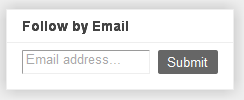
To enable Follow by Email, click the Add a Gadget link from the Design | Page Elements tab, and then select the Follow by Email gadget which should be at the top of the list. Once you add the gadget, readers visiting your blog can then just enter their email address and click Submit.


Taking advantage of Feedburner technology, Follow by Email will also track your subscription information, such as the number of subscribers and daily views. To view these stats, log into Feedburner.com, and select the appropriate blog feed from your list.

By Blogger Buzz

Blogger Tutorial: Create Read more with button

Tip: For searching codes in the Html, use Ctrl+F to search in your browser.

Firstly create a read more button. .
Then Upload your buttons on the blog. If you don't know how to - Click Here.
Now replace the link in the following code with your button link.

more
Save this code as your "BUTTON HTML".

How to create Image Gallery using Blogger Post???


How to create Image Gallery using Blogger Post?
  1. Login to blogger with your ID.
  2. Click New Post.
  3. Give a title for your image gallery, e.g. My PhotoShop.
  4. Click Insert Image tool.
  5. Click Choose files. Select a file of the image you have prepared and then repeat for next images from Choose Files. 
  6. Once all images have been uploaded, click Add Selected.
  7. Click Save as Draft.
  8. Done.
If you need to add new images to your image gallery next time, remember the steps below and follow.
  1. Click Posts tab.
  2. Click Edit Posts.
  3. Click on the Edit for the draft post where your image gallery is created.
  4. Upload the images as the steps explained above.
  5. Click Save Now.
  6. Done and let this post as draft.

How to change the text Read more in Blogger!


Below is how to change the text “Read more” in Blogger:
  • Login to Blogger and 
  • Click Design.
  • Click Edit at  Blog Post.
blog post widget
  • At the field next to Post page link text: you will find the text Read more, and then change the text with your own text such as Continue reading or anything else as you want.
read more
  • Click SAVE.
  • Done. Now see the result. The text “Read more” should have been replaced with the text you have entered.

Add Statcounter to your blog!

StatCounter is packed full of useful and powerful tools to help you make better decisions about your website. A list of many of our features is below - just click on a feature for more detail (and check out the Live Demo for a hands-on look!).

Remember, unless otherwise stated, all these features are part of our free service!

Sunday, May 29, 2011

How to blog from iGoogle and Gmail


The Blogger Posting gadget makes it easy to post to your blog from the convenience of Gmail or your iGoogle homepage.

To add the Blogger Posting Gadget to your iGoogle page, simply click this button:
Add to Google
Then click the blue "Add to Google" button. Make sure that you're signed in with the same Google account that you use for Blogger. Once you've added the Blogger Posting Gadget you will see the gadget on your iGoogle page:
To add the Blogger Posting Gadget in Gmail, you'll first have to enable the Add Gadget by URL lab feature from your settings:

Creating 'After the jump' summaries - The blogger way


After the Jump is a feature which lets you create expandable post summaries in your blog posts, so longer posts appear as an intro with a link to Read More
Creating jump breaks in your blog posts can be easily done right from the post editor, without the need for any HTML changes. First, decide where in the post you want to create the jump break, and place your cursor in that position:


Once your mouse cursor is placed at the jump point, simply click the Insert Jump Breaktoolbar icon:


Clicking the icon will insert a grey bar at the cursor point, illustrating where in the post your break will appear. The bar can be dragged though, so you can always re-position it after insertion.

If you don't use the new post editor, you can still insert a jump break in Edit HTML mode by adding where you want to position the jump break.

Time for in-text advertising - Infolinks


What is Infolinks?

Infolinks, Inc. is a leading provider of pay per click In-Text advertising services, working with online content publishers worldwide. Established in 2007, Infolinks leads the industry with the most attractive business model and guarantees the highest revenue share to all partners.
Infolinks enables website owners and publishers to benefit from premium In-Text ads without any risk – registration is free with no fees and no commitment. With just one minute integration, your text will start generating revenue for you.

Wibiya Toolbar - Blogger Installation


Blogger Installation

bloger2.png 

ins1.png


Login to your Wibiya account.

Install the cool Wibiya toolbar on your blog

Install the cool Wibiya toolbar on your blog
Boost your Blog/Website with Rich & Interactive Features

  •  No coding necessary
  •  Add it in two minutes
  •  Totally free web applications!
Integrate Twitter and Facebook Toolbar Applications into Your Website
  • Readers can tweet, write on your facebook fan page and share your content without leaving your website
  • Enjoy the full twitter experience including search, latest tweets, tweets for each page and more
  • Add facebook toolbar applications and stream traffic from your fan page to your website and back again
Increase Page Views & Traffic
Generate more page views using web applications such as Latest Posts, Real Time Users and more...
  • Promote your content using great 3D galleries, games, live broadcasting and other fantastic web toolbar applications
  • Track your traffic growth, sources and trends with easy to use analytics
  • Communicate with Your Readers – Make Your Website Interactive
  • Broadcast messages, notifications and alerts in real time
  • Share all your tweets with your readers
  • Participate in live chat rooms using unique web toolbar applications

How to install Wibiya toolbar in your website ?


How to install Wibiya toolbar in your website ?

InstallationInstructions.png

Login to "Wibiya.com"

Press  "Edit Toolbar" -> "Install Again"

ins1.png

Choose your Website or Blog platform or click on "Other blog platform"

Speed up your blog!

You are always concerned about your blog speed and loading time. Even Google is. Here are some official tips exclusively for you by Google& Blogger.

The speed at which your blog loads is critical to attracting more readers to your blog. If your blog takes a long time to load, many readers may leave your blog before they have the chance to read it. Here are a few tips and tricks that will help your blog load faster and attract more users:

Posts

Your blog's load time can be affected by the number of posts you display on your main page. You can easily edit the number of posts displayed of the main page from the Settings | Formatting tab. You can then select the number of posts you want to display on the main page. We recommend displaying 10 or fewer posts on the main page. 

How to create post with "Read more" in between of the post


  • Login to Blogger
  • Click New Post icon on the Dashboard.
  • Insert the title and article
  • Now before publishing the post, just click the page break option on the right of the Add Video icon with the cursor being on the paragraph where you want the page break.
  • Click Insert Jump Link ( read more ) tool.
  • When perfect, click PUBLISH POST.


read more blogger tool